
New campaign
Create an email, choose recipients, and send or schedule your campaign.
Step 1 — Create
Start from your brand dashboard. Open New campaign from the left sidebar, then enter campaign name, email subject, from name, and compose your HTML or plain text body.
-
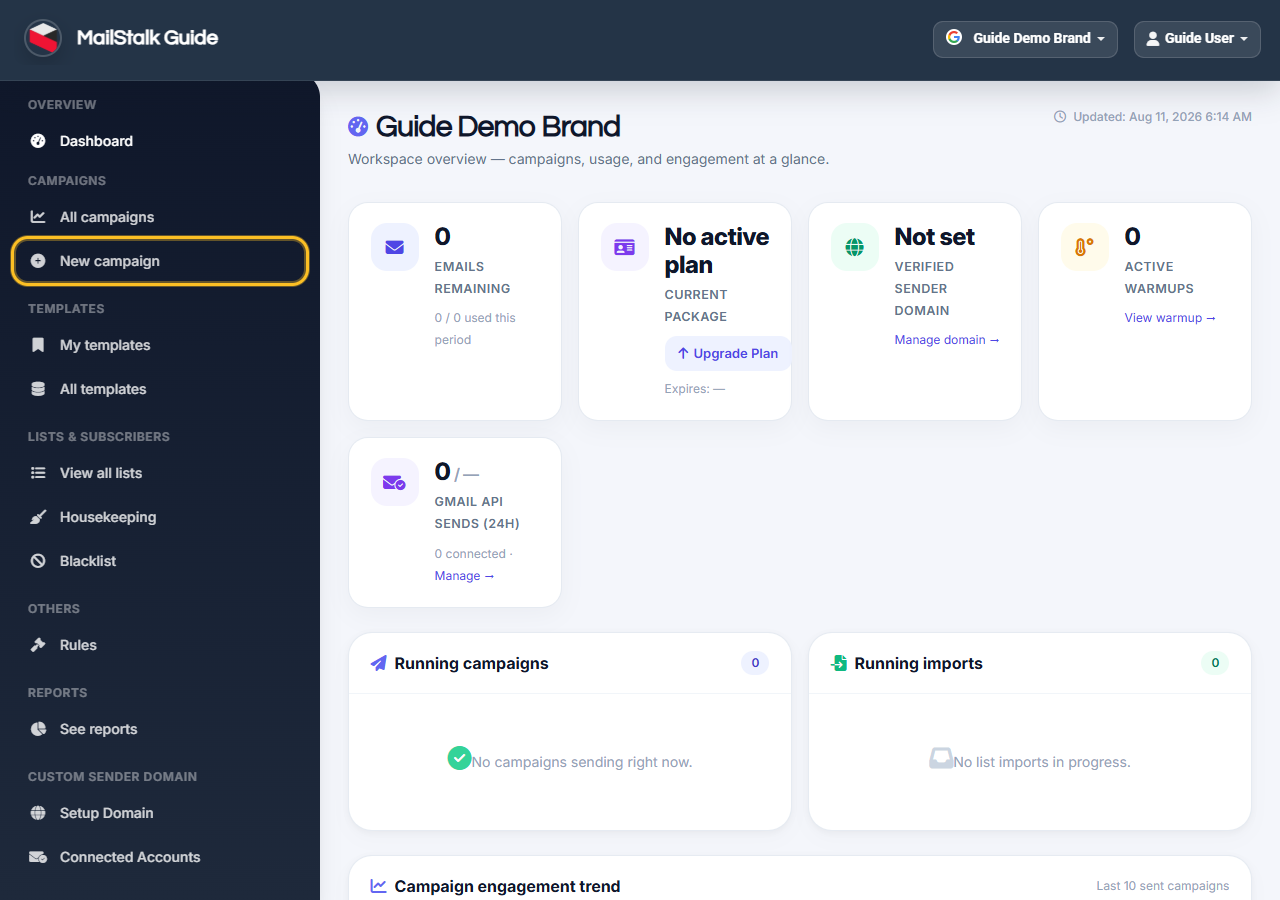
Open your brand Dashboard, then click New campaign in the left sidebar.
-
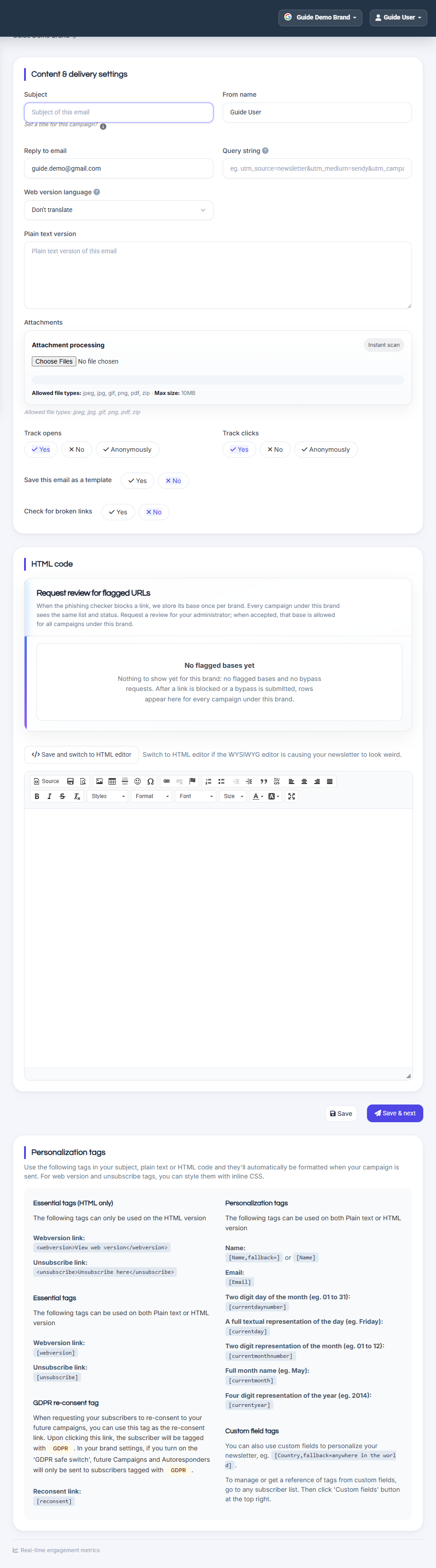
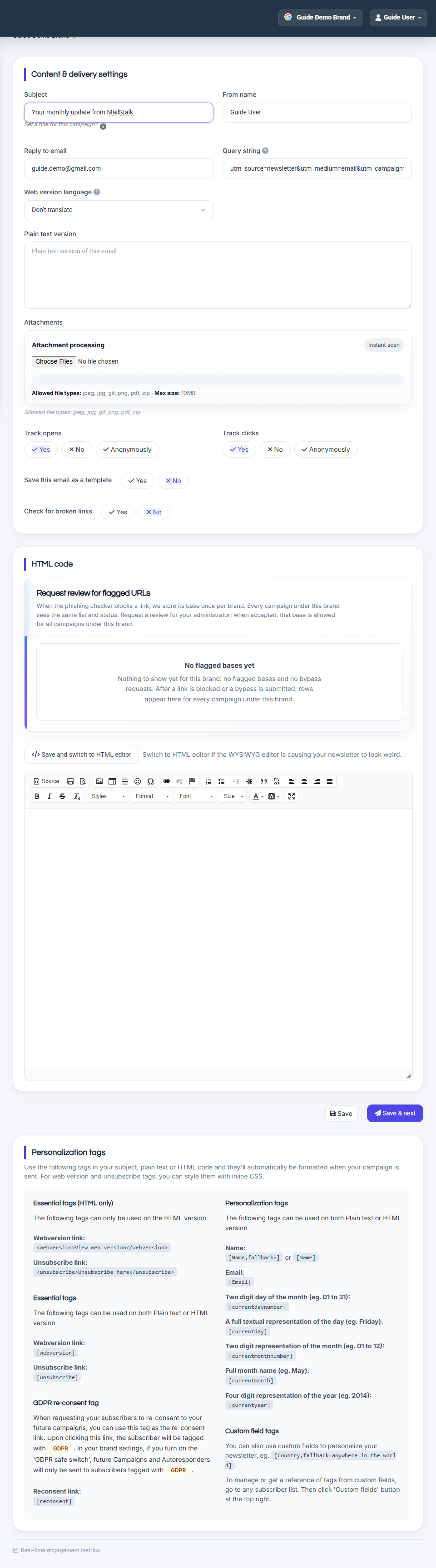
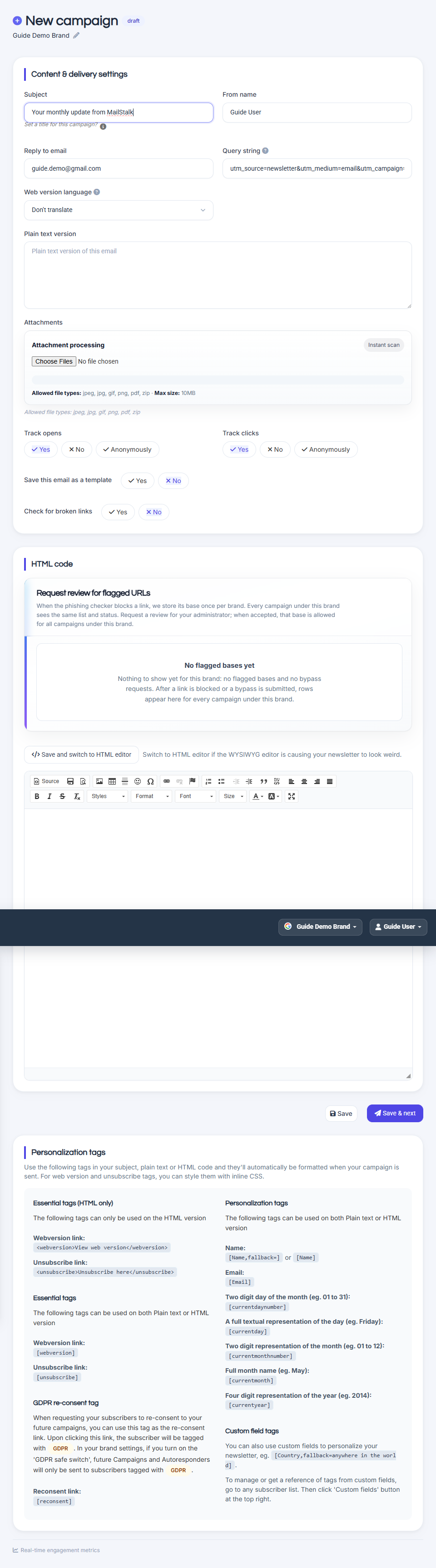
The New campaign editor opens — compose your email here.
-
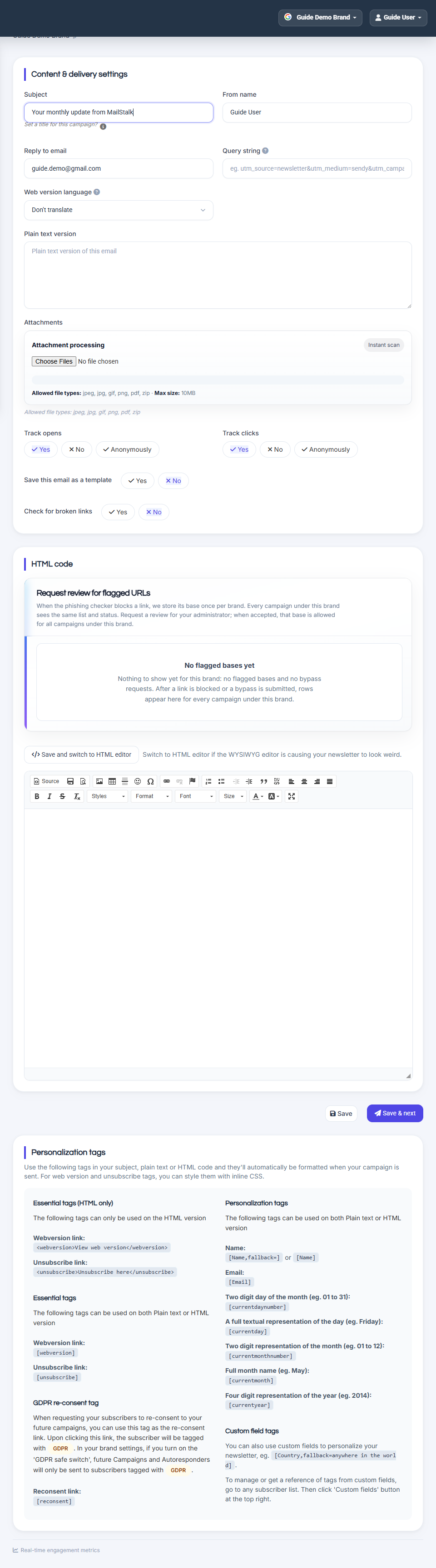
Fill in campaign name and subject line.
-
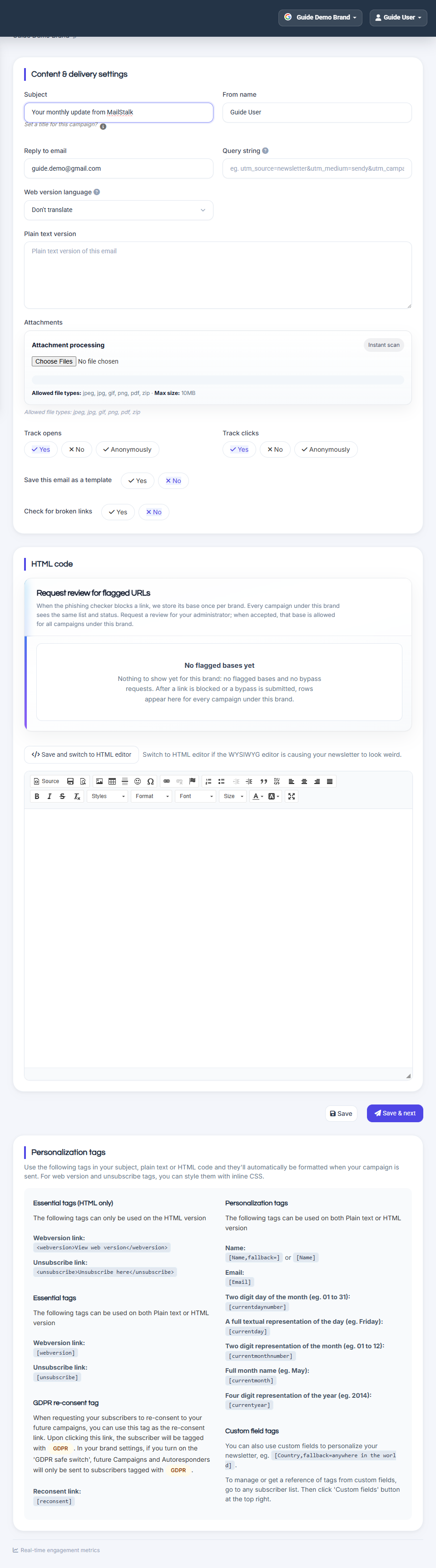
Write content or insert a saved template.
-
Optionally set a Query string (see below) for link tracking.
-
Save and continue to recipient selection.
Query string — what it is and how to use it
The Query string field lets you automatically add tracking parameters to every clickable link in your campaign HTML. This is commonly used for Google Analytics UTM tags so you can see email traffic in your website reports.
How it works when the campaign sends:
• MailStalk finds each normal link (href) in your email HTML.
• If the link has no parameters yet, your query string is added after a ? character.
• If the link already has parameters, your string is added after an & character.
• Anchor links (#section) are preserved — parameters are inserted before the #.
Special links are not modified: mailto:, tel:, unsubscribe links, web version links, and similar system links.
Important rules:
• Do NOT type the ? at the start — enter only the parameters.
• Use standard format: key=value pairs separated by &.
Example query string:
utm_source=newsletter&utm_medium=email&utm_campaign=spring_sale
Example result in an email link:
• Original: https://yoursite.com/products
• After send: https://yoursite.com/products?utm_source=newsletter&utm_medium=email&utm_campaign=spring_sale
• Original: https://yoursite.com/sale?ref=home
• After send: https://yoursite.com/sale?ref=home&utm_source=newsletter&utm_medium=email&utm_campaign=spring_sale
Your brand can also set a default query string in Settings so new campaigns start with the same values.
- On the New campaign form, find the Query string field (below Reply to email).
- Enter parameters without a leading ?, e.g. utm_source=newsletter&utm_medium=email&utm_campaign=april_promo.
- Compose your email with normal https:// links in buttons and text.
- Send or schedule the campaign — parameters are appended automatically at send time.
- In Google Analytics (or your analytics tool), filter by your utm_campaign or utm_source to measure email clicks.
Step 2 — Choose recipients (Send to)
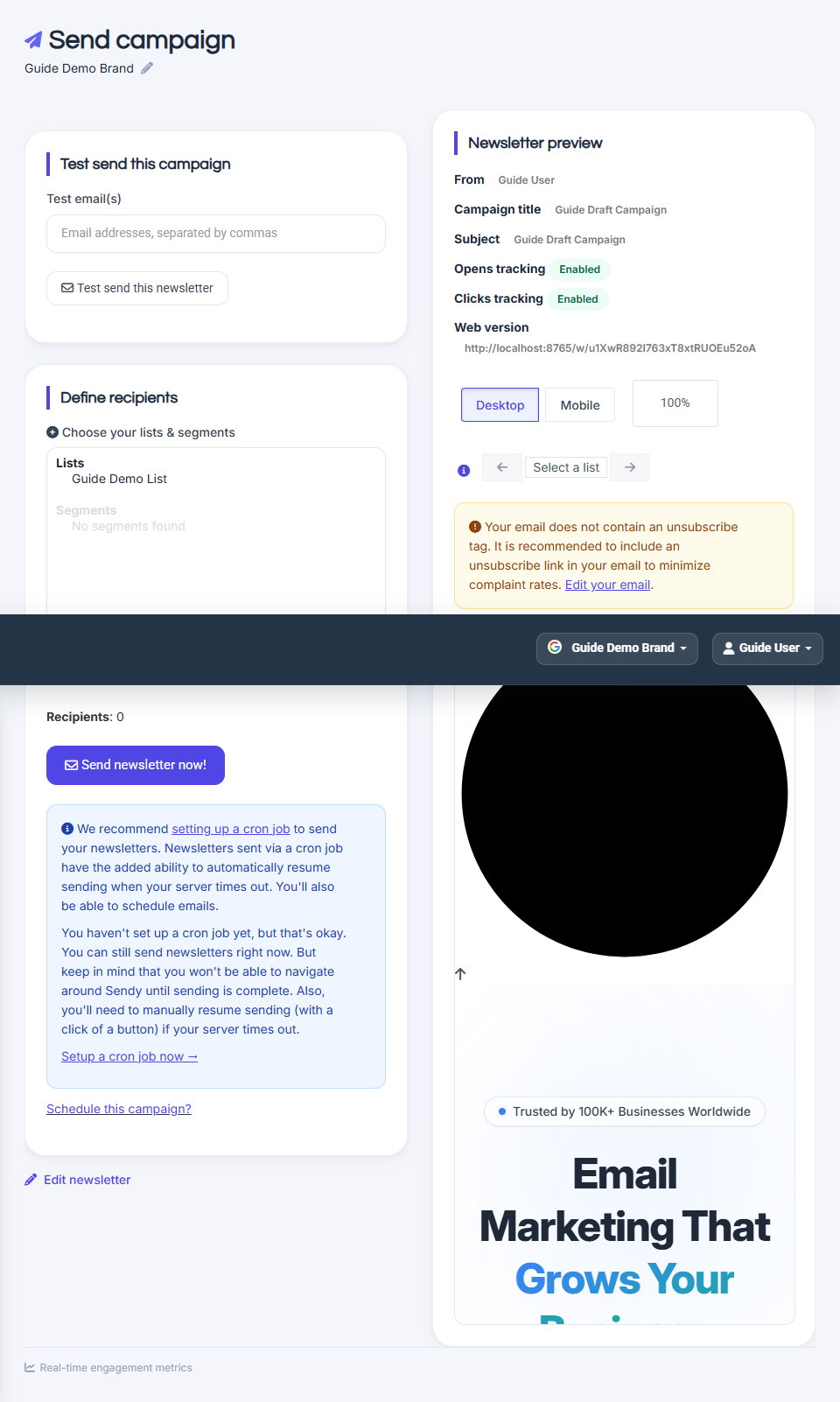
Pick one or more lists or segments. You can exclude lists or send a test first.
-
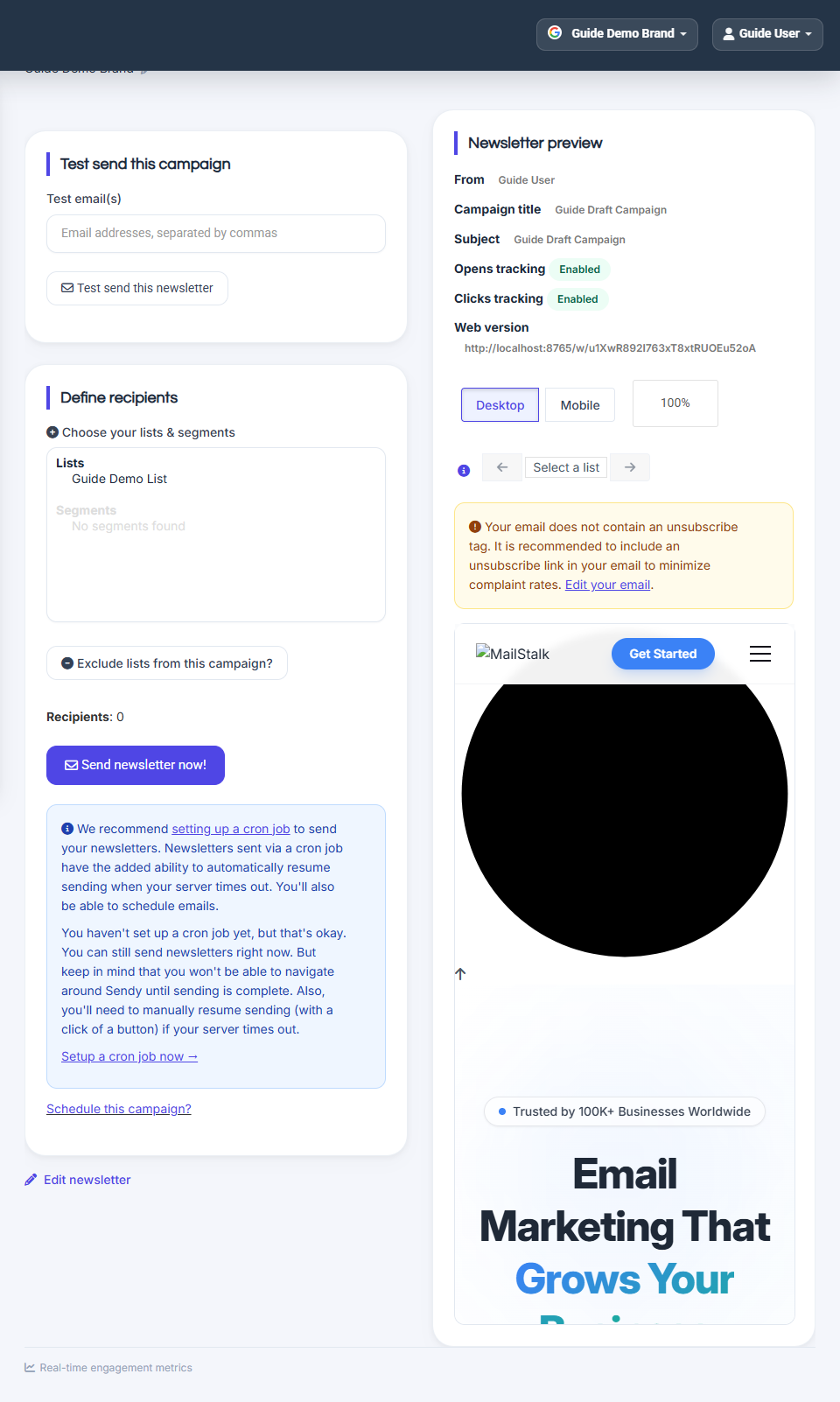
Select the lists that should receive this email.
-
Review estimated recipient count.
-
Proceed to the final review screen.
Step 3 — Send or schedule
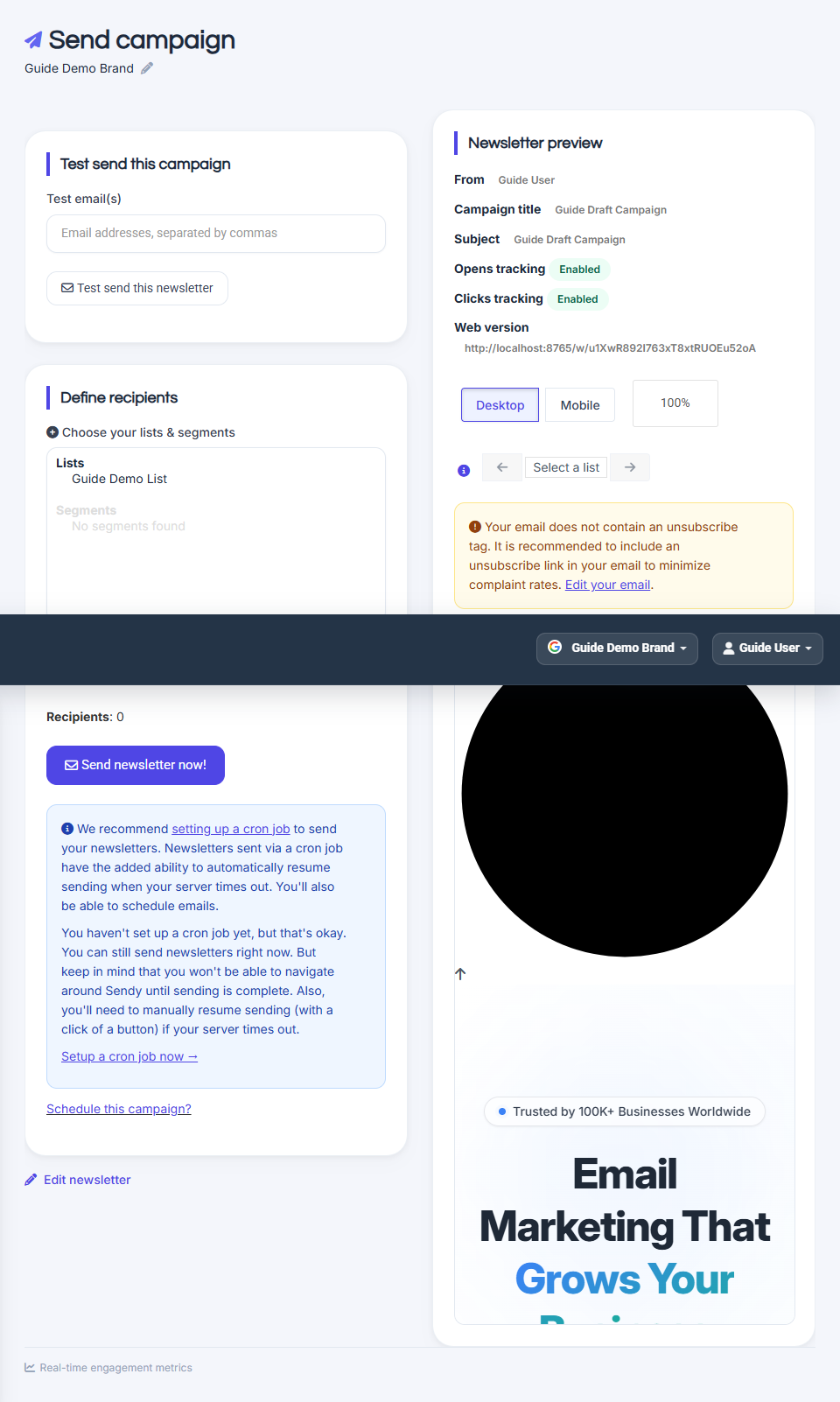
Send now, schedule for later, or save as draft. Use Test email to preview in your inbox.
-
Click Send now or pick a schedule date and time.
-
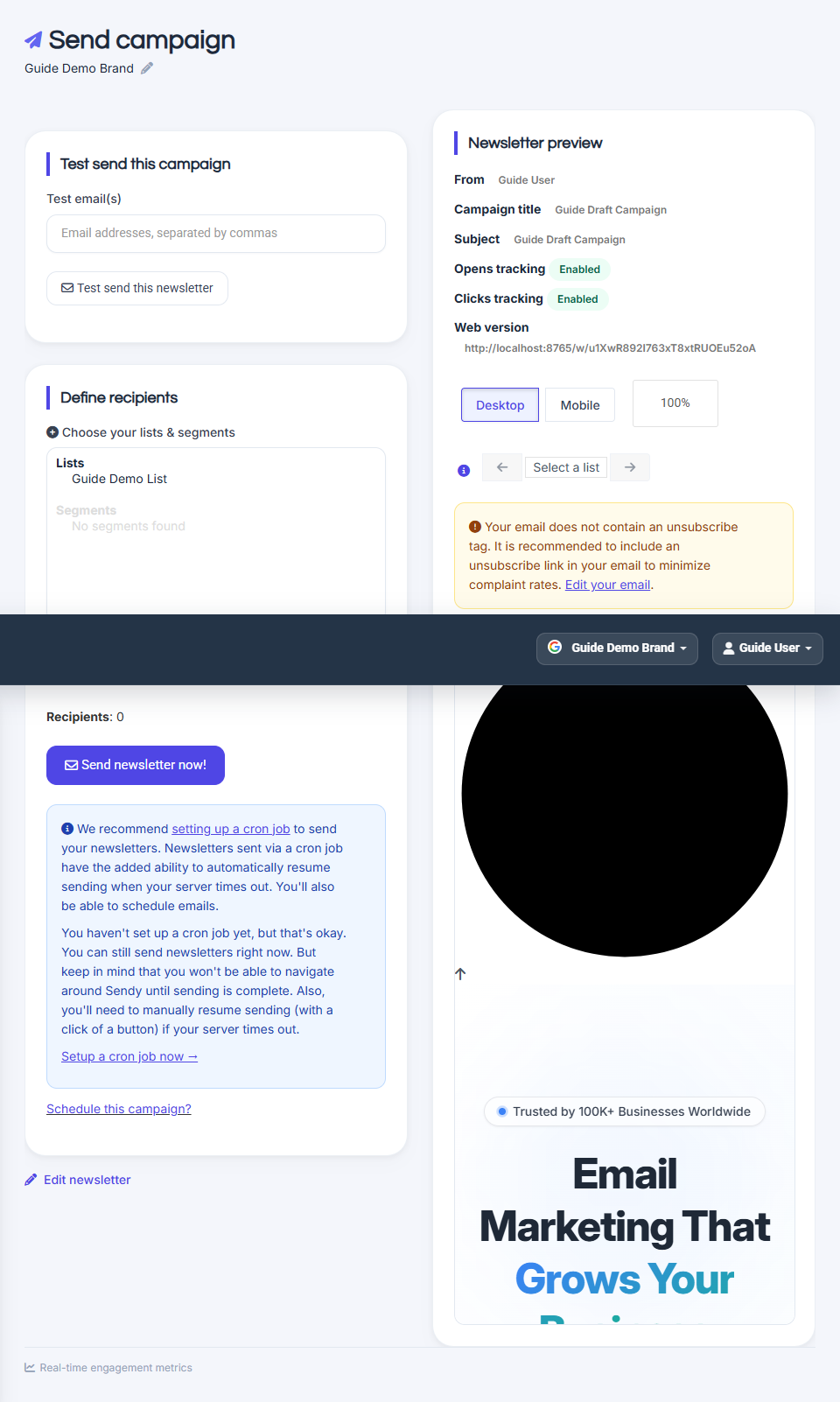
Confirm sending limits and domain status if prompted.
-
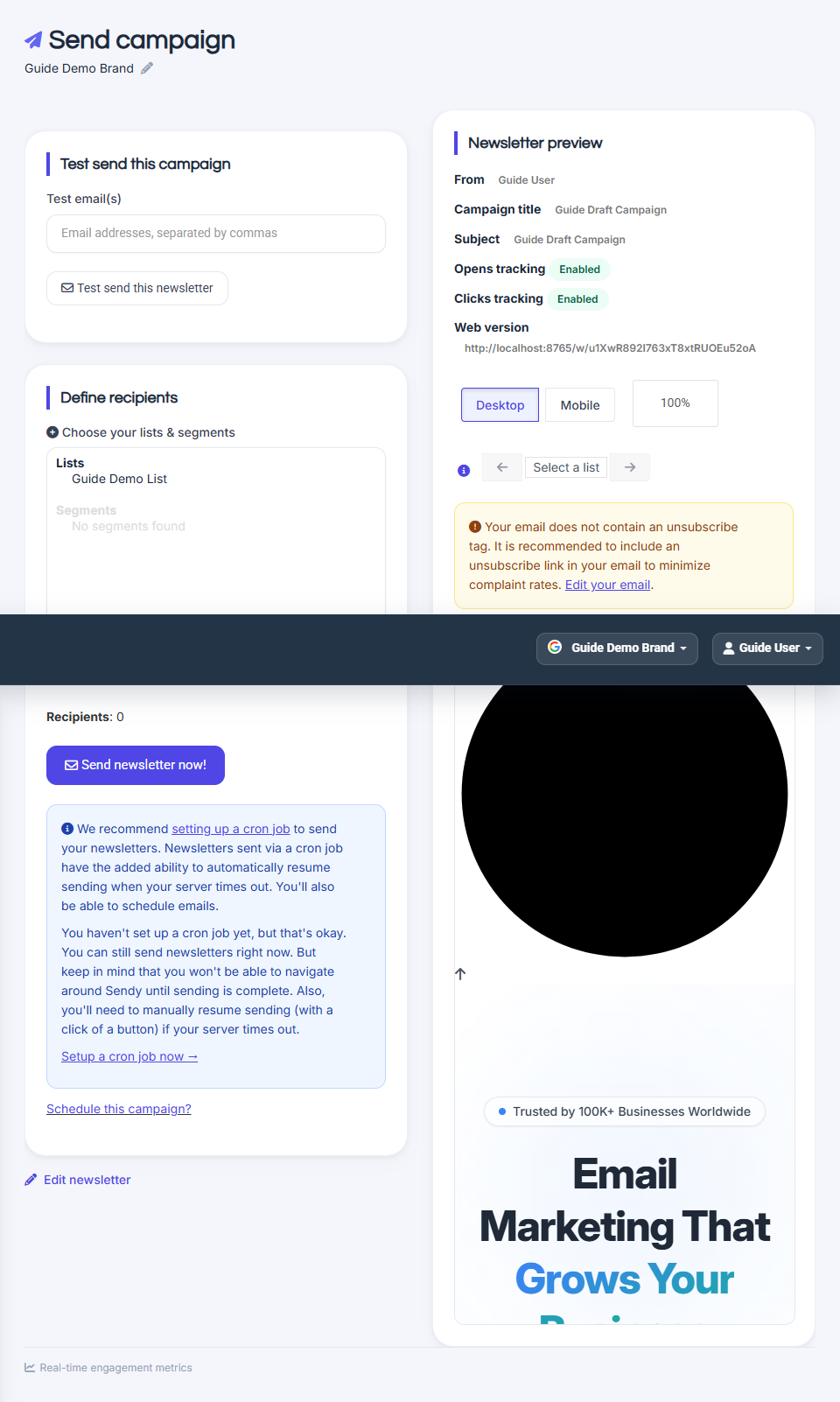
Track results under Reports after send completes.
Common questions
Send button is disabled.
Verify your domain, check monthly quota, and ensure at least one list is selected.
How do I send a test?
Use the Test email option on the compose or review step before the full send.
Should I include ? in the query string?
No. Enter only the parameters, for example utm_source=newsletter&utm_medium=email. MailStalk adds ? or & automatically depending on each link.
Does query string affect plain-text links?
Query strings are applied to tracked HTML links when the campaign is prepared for sending. Use full https:// URLs in your HTML content for tracking to work.