
Lists & subscribers
Organize contacts into lists, import subscribers, and manage segments.
Who this is for: Anyone building or maintaining an audience.
Create a list
-
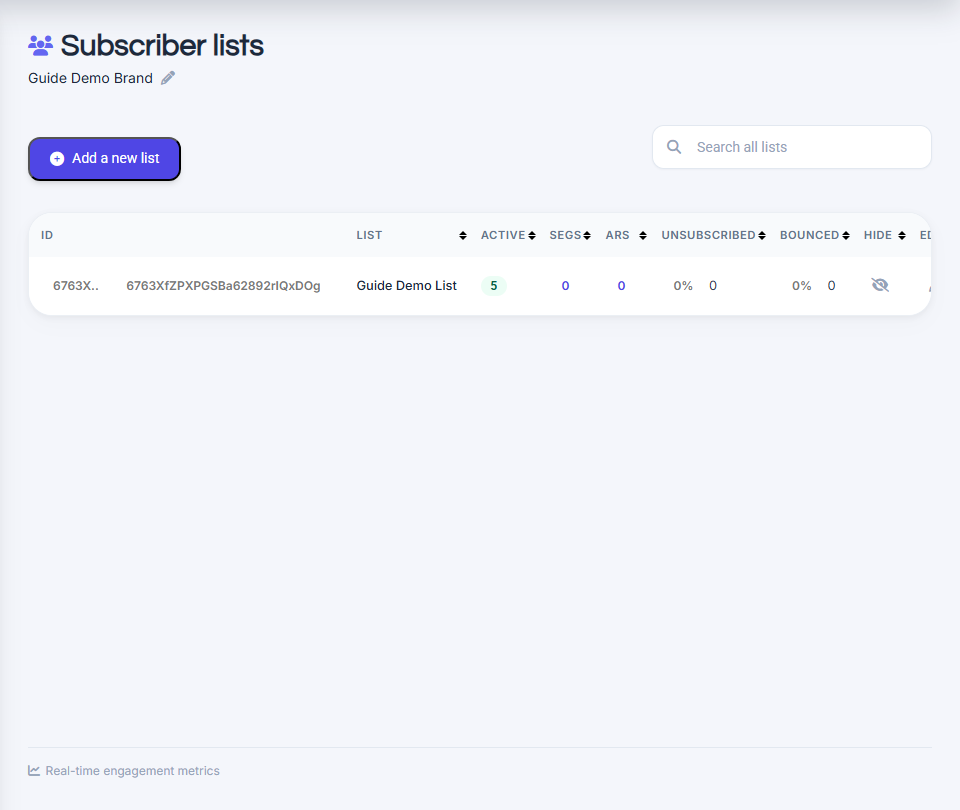
Go to View all lists.
-
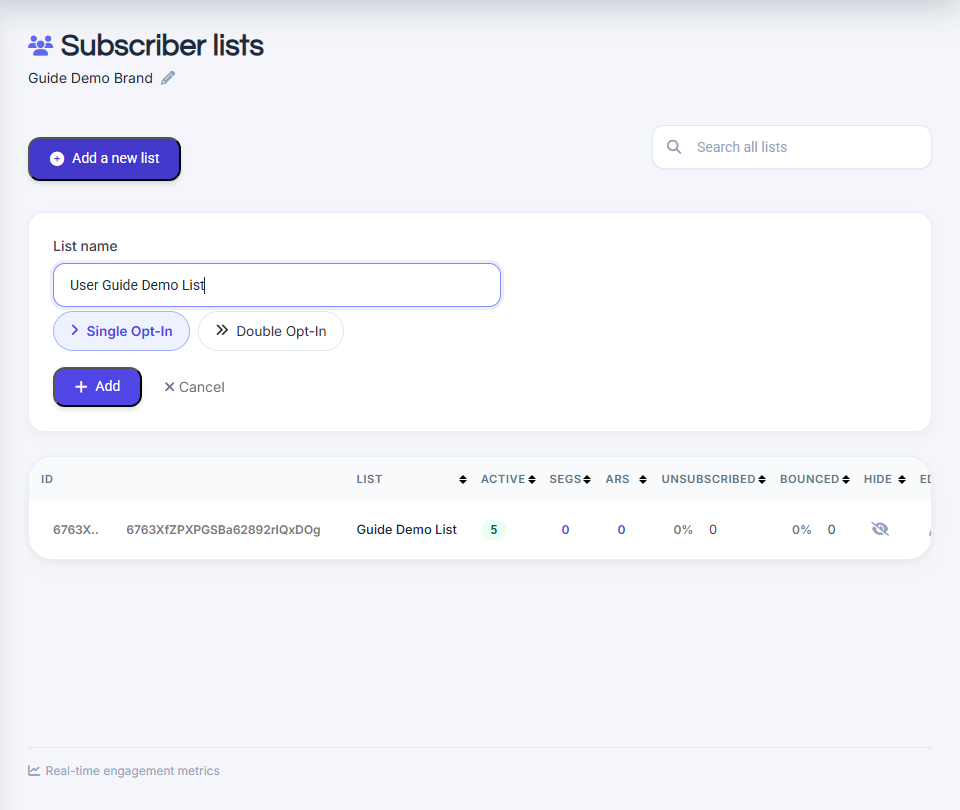
Click create new list and name it.
-
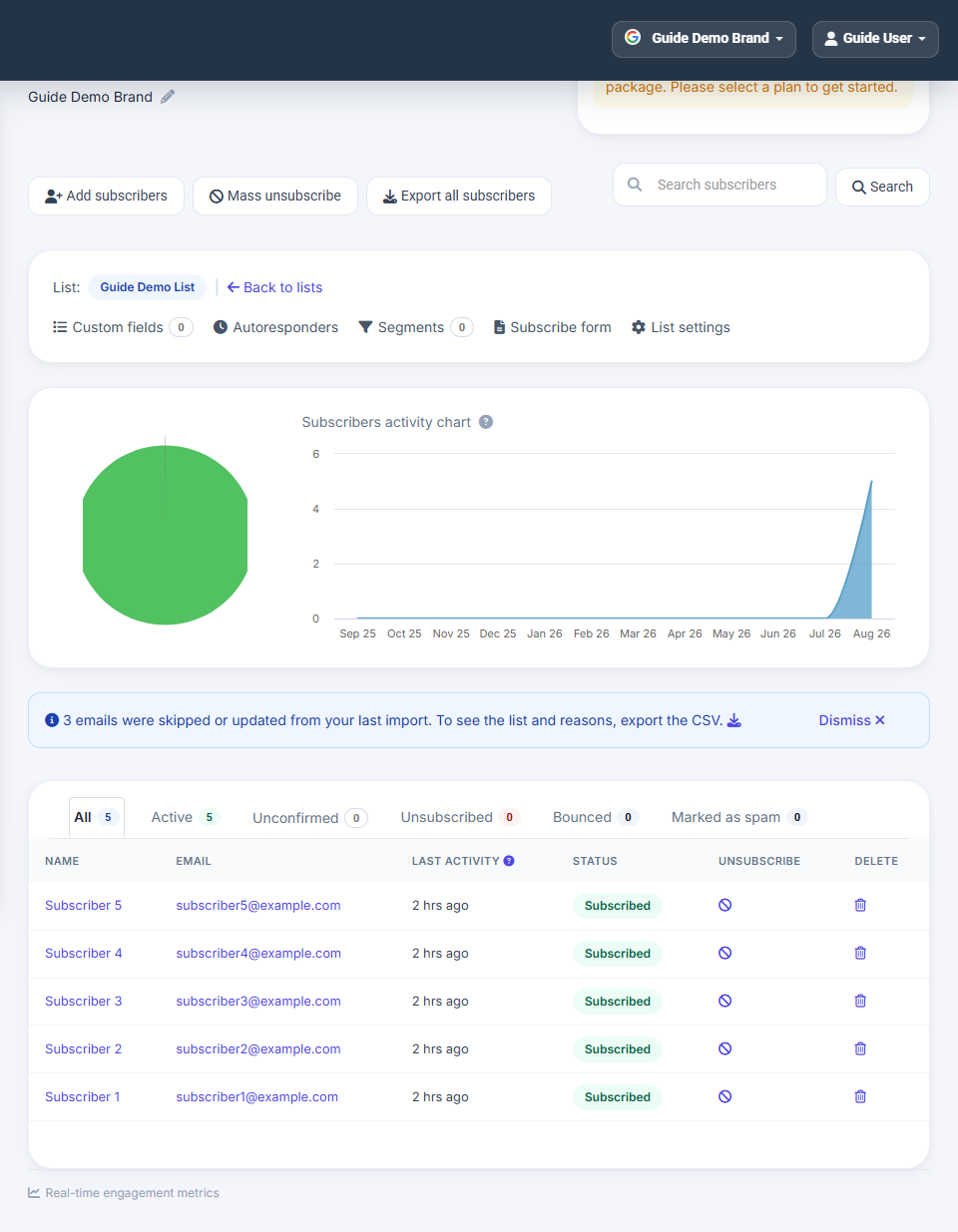
Open the list to add subscribers.
Import subscribers via CSV
Upload a comma-separated CSV file to add or update subscribers in bulk.
-
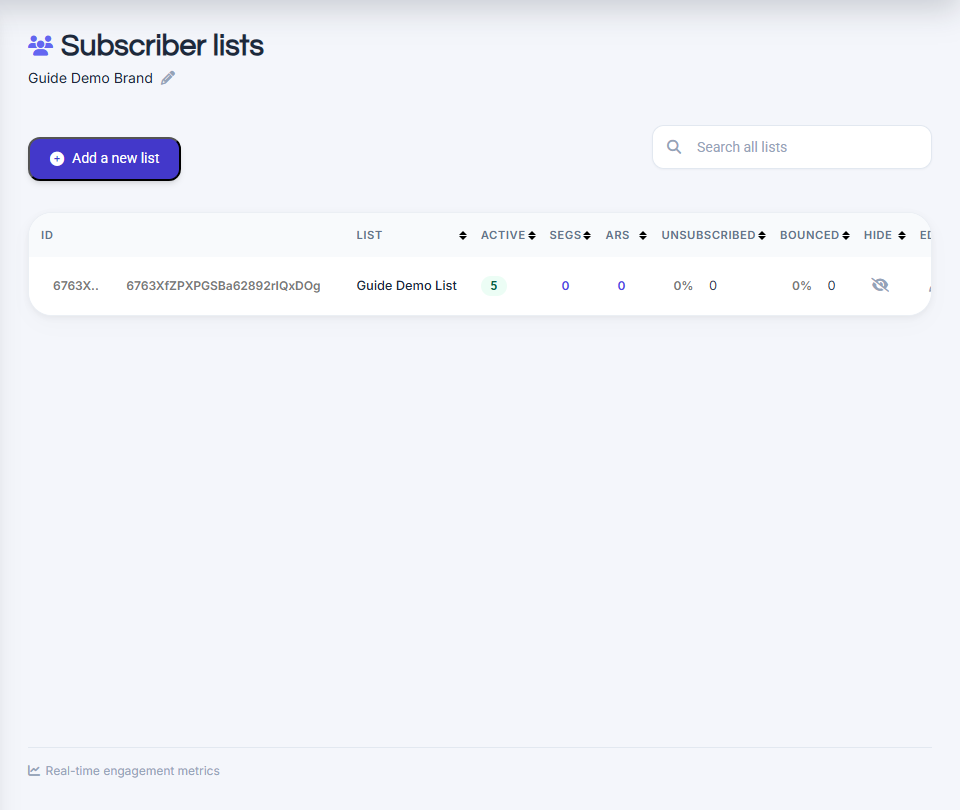
Go to View all lists in the left sidebar.
-
Open the list you want to import into.
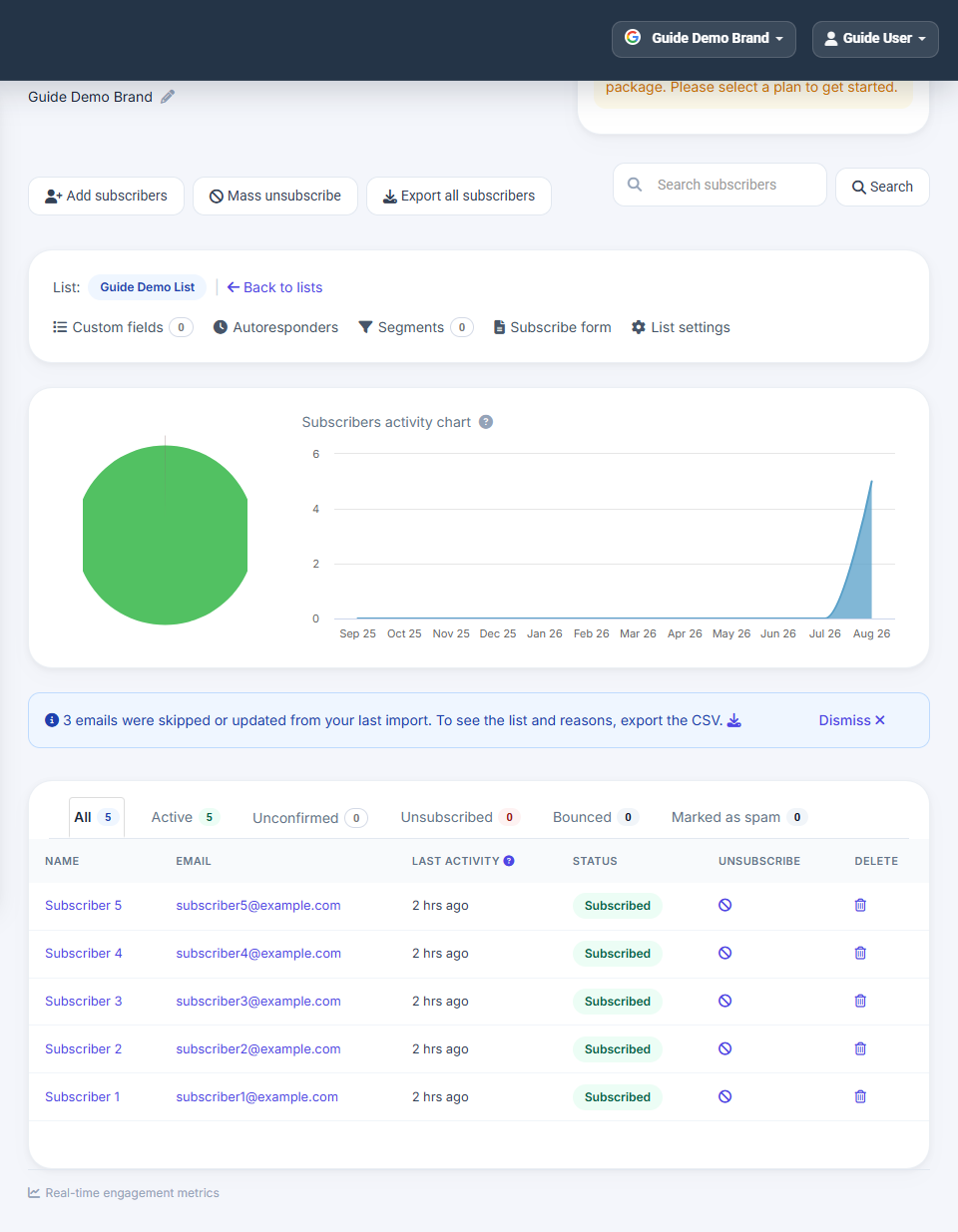
-
Click Add subscribers to open the CSV import screen.
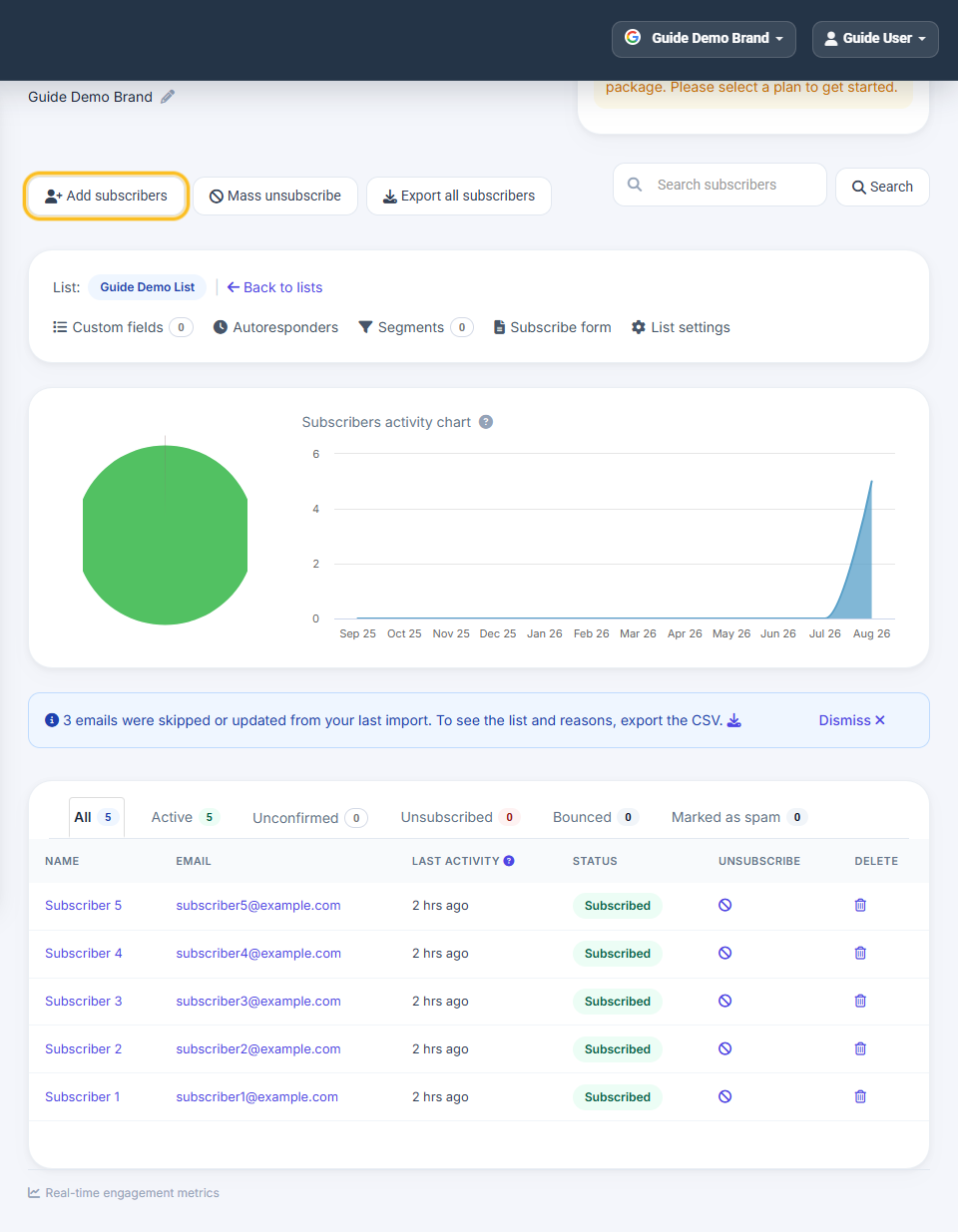
-
Review the CSV format example — Name and Email columns are required.
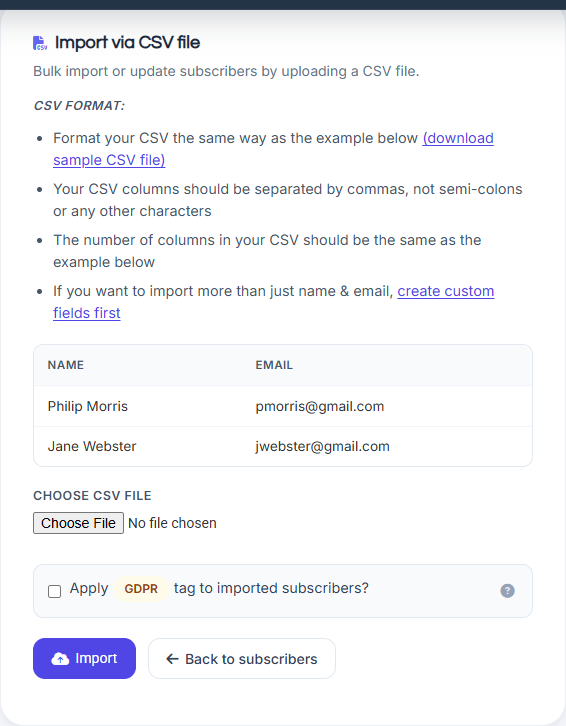
-
Choose your CSV file, then click Import.
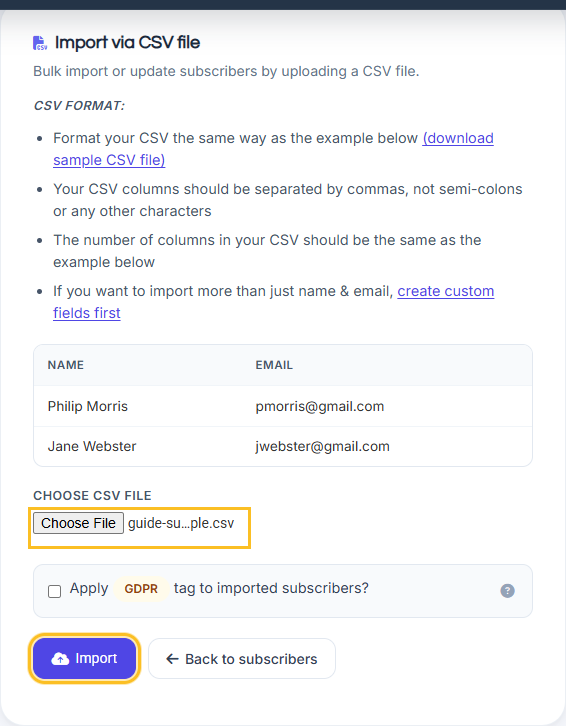
-
After import completes, subscribers appear in your list.
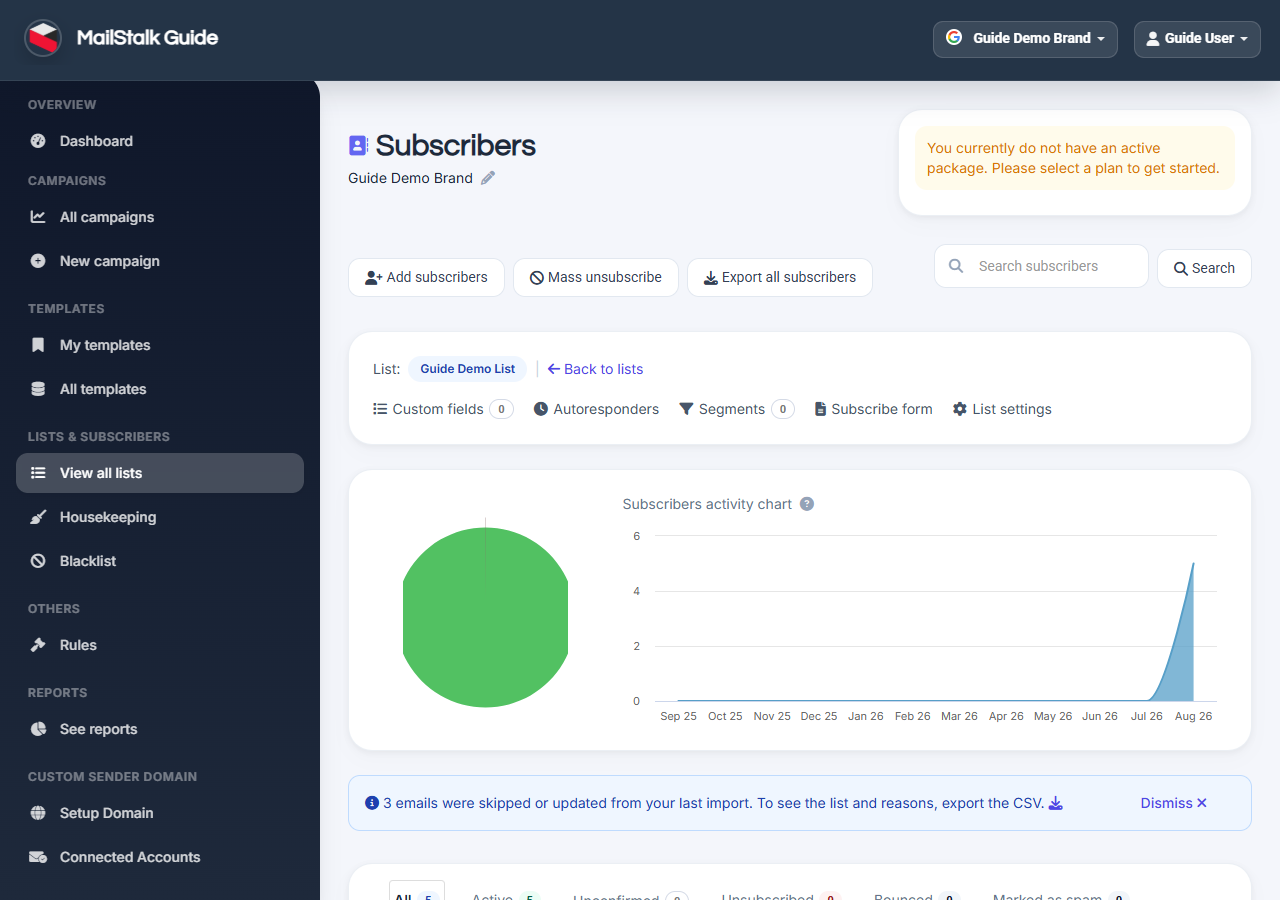
Subscribers page
Search, edit, unsubscribe, or delete individual contacts. Use segments for advanced targeting.
Common questions
Import failed.
Ensure one email per row, valid format, matching column count, and no duplicates blocked by suppression list.
CSV column mismatch error.
Your file must use the same columns as the format table (Name, Email, plus any custom fields). Use commas, not semicolons.